
The Tax Organizer Template Builder gives your firm full control over how you collect tax information from clients. Instead of sending generic organizers, you design a structured experience — with the right questions, the right order, and logic that adapts to each client's situation.
The template is the blueprint. It defines the sections, questions, and logic that power every organizer you send. Client organizers are generated from this blueprint, pre-filled with prior-year data, and delivered through the client portal.
Qount provides a ready-to-use starting point — the 1040 - Tax Organizer Template - Default — with a complete structure, preconfigured questions, validation rules, display logic, and prior-year data mappings already built in. Your firm can customize this template or build your own from scratch.
If your firm has built or used any templates in the previous version of Tax Organizers in the new interface, you will need to duplicate those templates to access the new features and continue working on them in the updated version. Templates from the previous version cannot be used for sending organizers or performing any actions — they must be updated to the latest version by duplicating. The duplicated template will include all the latest functionality. Your original template remains unchanged.
With the Template Builder, your firm can:
- Use and customize the Qount-provided template, or build your own from scratch
- Add, edit, reorder, and remove sections, sub-sections, categories, and questions
- Apply display logic so questions appear only when relevant to a client's situation
- Configure repeatable sub-sections for clients with multiple businesses, properties, or entities
- Carry templates forward to future tax years without rebuilding (option unavailable until TY2026 is enabled in early October)
- Set one template as the firm default for organizer generation
Tip: Start with the Qount-provided template and customize it. It already has a complete structure, display logic, and prior-year mappings built in — customizing is faster and less error-prone than building from scratch.
Important Any changes made to a template apply immediately to all client organizers built from that template — including those already sent. There is no way to make changes at the individual client level. Plan template edits carefully, especially during an active filing season.
Quick Navigation
1. Accessing the Template Builder
Templates are managed from a dedicated area in Qount's main navigation.
Navigation path: Main Navigation → Work → Tax → Tax Organizers → Templates
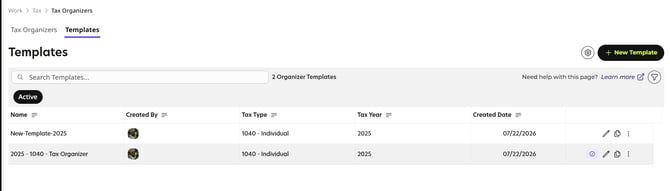
From the Templates area, your firm can view all templates, access the Qount-provided default, create new templates, and open any template to review or edit it.
Note: Templates are firm-level — shared across your entire firm, not tied to individual clients or staff members.
2. Who Needs Access
Firm Users (Staff)
To access and use the Tax Organizer module, a firm user must have the Questionnaire permission enabled on their user profile. A Firm Admin can configure this under Firm Management → Manage Users → select user → Permissions.
Clients
For a client to see and complete a tax questionnaire in the portal, the client must have portal access enabled in Qount. A Firm Admin can enable this under CRM → Client → Users → select client contact → enable Portal Access.
3. Managing Your Templates
3.1 Viewing Templates
The Templates list shows all templates your firm has created, including the Qount-provided 1040 - Tax Organizer Template - Default. A visual indicator marks whichever template is currently set as the default for organizer generation.
Note The default template is configured in Tax Organizer Settings — not in the template itself.
🔗 For default template configuration, see Tax Organizer Settings → Organizer Template.
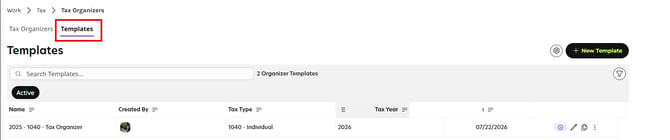
3.2 Creating a New Template
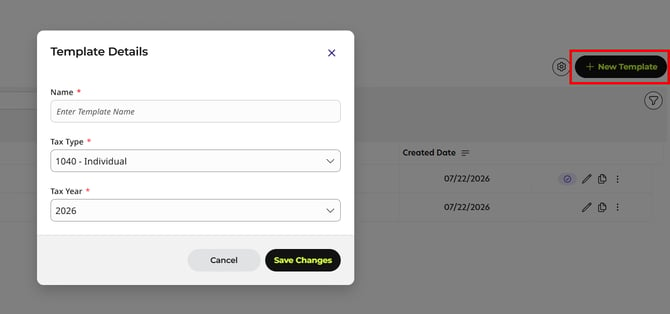
To create a new template, click New Template. You will be prompted to enter a template name, select a tax year, and confirm the tax type (1040 - Individual by default). You are then taken directly into the Template Builder.
Tip Start with the Qount-provided template and customize it rather than building from scratch. The provided template already includes a complete question set, validation rules, display logic, and prior-year mappings — saving significant setup time.
3.3 Editing a Template
You can open and edit any template from the Templates list at any time. Changes to questions are not auto-saved — click Save after adding or editing each question. If you navigate away without saving, your changes will be lost.
⚠️ Important: Template changes apply immediately to all organizers built from that template — including those in Draft, Ready to Send, and Sent statuses. Review changes carefully before saving during an active filing season.
3.4 Carrying a Template Forward to a New Tax Year
🆕 You can duplicate a template for the next tax year directly from the template actions menu.
From the three-dot (⋮) menu on any template, select "Duplicate for next tax year." Qount creates a copy immediately with the new year added at the beginning of the name.
Example: "1040 Organizer - 2025" duplicates as "2026 1040 Organizer - 2025." Your firm can rename the copy at any time. The original is unchanged.
Note This creates the copy immediately on click — it is not scheduled or deferred. Use this at the start of each filing season instead of rebuilding from scratch.
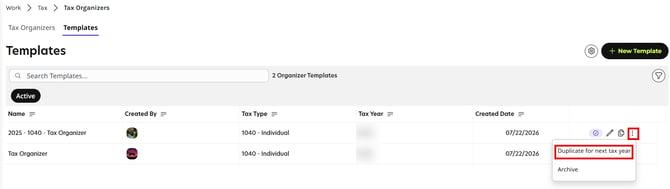
Important note: The Duplicate for the Next Tax Year option is temporarily unavailable because Tax Year 2026 is not yet available. Once Tax Year 2026 templates are released (currently planned for early Q4), you'll be able to duplicate your existing templates into the new tax year.
4. Template Structure — Key Concepts
A template is made up of four building blocks. Understanding what each one does helps you make intentional design choices before you start building.
🔗 For step-by-step instructions on building each of these elements, see How to Build a Tax Organizer Template.
4.1 Sections
Sections are the highest level of organization — they represent major areas of tax information such as Personal Information, Income Sources, Deductions & Credits, and Additional Info.
Qount provides a set of default sections that form the foundational structure of every organizer. Your firm can add custom sections alongside them. Both default and custom sections can be reordered.
Sections can be enabled or disabled. A disabled section is completely hidden from clients and excluded from mandatory question counts. Use the disable option to hide sections that are not relevant for your clients.
Note: A section can hold either questions or sub-sections — not both. The first content you add determines the section's structure.
4.2 Sub-sections
Sub-sections live inside sections and organize information by topic — for example: Income Sources → Wages, Income Sources → Business, Income Sources → Rental.
Sub-sections can be added to both default and custom sections via the three-dot (⋮) menu next to the section name. For default sections, you can add standard or repeatable sub-sections. Custom sections have additional options including Edit, Delete, and Disable.
When prior-year setup is complete, sub-sections surface prior-year data entities for clients to review — for example, prior-year employer names appear in the Wages sub-section.
Note Display logic cannot be applied to repeatable sub-sections. If you need conditional visibility, use a standard (non-repeatable) sub-section instead.
4.3 Categories
Categories are optional groupings for closely related questions within a section or sub-section. Questions inside the same category are presented to clients together on a single screen.
Categories are organizational only — they do not collect data themselves. Category names can be edited at any time.
Note Display logic cannot be applied to repeatable categories. If you need a category to show or hide based on client responses, use a standard Category instead.
4.4 Questions
Questions are the primary data-collection elements. They can be placed directly within a section, within a sub-section, or within a category.
Questions placed outside a category are displayed to clients separately — not grouped on a single screen. This gives clients focused, one-at-a-time prompts for standalone questions.
Qount supports a wide range of question types: short and long text, multiple choice, checkboxes, yes/no, date, numeric with validation (currency, SSN, TIN, phone), file upload, rating (5-star), predefined schedules (Schedule C, E, F), and more.
🔗 For a full question type reference, configuration options, display logic steps, and repeatable sub-section setup, see How to Build a Tax Organizer Template.
5. Prior-Year Data
When prior-year setup is complete, client organizers are generated with prior-year information already pre-filled — clients review and confirm it rather than starting from scratch. This connection is established at the template level.
5.1 What Gets Pre-filled
Prior-year data is currently supported for:
- Personal Information — taxpayer, spouse, dependents, contact details, bank information
- Income Sources — wages (W-2 employer names), 1099 payers, business entities, rental properties, and more
In the firm view of the client organizer, fields pre-filled from prior-year data are marked with a PY label across both Personal Information and Income Sources sections. When a client updates a pre-filled answer, the field is highlighted in yellow — making it easy for the firm to see what has changed.
In the downloaded PDF, two types of highlighting appear: yellow for fields where the client updated a prior-year value, and blue for fields where the client answered Yes. Clients do not see PY labels in their view — they see only the yellow highlight when they update a pre-filled answer.
Note Prior-year data mapping works only with Qount's built-in question types for each sub-section. Custom questions you create from scratch will not pull prior-year data.
🔗 Prior-year setup requires tax software printing and configuration. For setup steps, refer to Tax Software Print Instructions.
5.2 "Pulls from Prior Year" Indicator
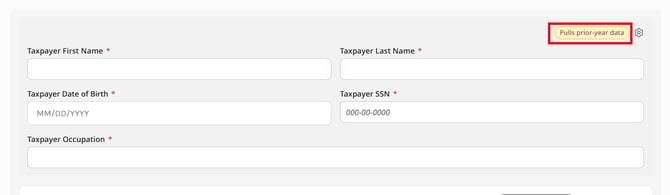
Sections that pull prior-year data display a "Pulls from prior year" label directly in the template builder, so you can see at a glance which sections will be pre-filled for clients.
6. Key Guardrails
A few important things to know before you start making changes:
Template changes affect live organizers.
Changes made to a template apply immediately to all organizers built from it — including those already sent to clients. There is no draft mode for template edits. During an active filing season, review all changes carefully before saving.
Only one default template at a time.
Only one template can be set as the default. The default template is what Qount uses when generating client organizers. This is configured in Tax Organizer Settings, not in the template itself.
🔗 See Tax Organizer Settings → Organizer Template to configure the default template.
Mapped questions have constraints.
Questions connected to prior-year data cannot be freely deleted or recreated. Removing a mapped question may break the prior-year connection, and re-adding a similar question does not restore the original mapping. Check for the "Pulls from prior year" label on a section before modifying its questions.
Sub-sections can be added to both default and custom sections.
Use the three-dot (⋮) menu next to any section name to add a sub-section or repeatable sub-section. Default sections support adding sub-sections but have fewer menu options than custom sections. Display logic cannot be applied to repeatable sub-sections.
A section cannot have both questions and sub-sections.
When you add the first question to a section, the ability to add sub-sections to that section is disabled. When you add a sub-section first, questions can only be added inside the sub-sections — not directly to the parent section. The Add Section modal displays a reminder of this rule each time you create a new section. Plan your section structure before you begin adding content.
Categories cannot be converted to repeatable after creation.
If you think clients may need to add multiple instances of a question group, create it as a Repeatable Category from the start. It cannot be converted later.
Important: Plan repeatability before building. When in doubt, use Repeatable Category or Repeatable Sub-section for anything a client could have multiples of.
7. Recent Updates to the Template Builder
Prior-Year Mapping Labels on Sections
Sections that pull prior-year data now display a "Pulls from prior year" label directly in the template builder.
Prior-Year Mapping Available on Custom Templates
Wages and 1099 mapping sections — previously available only in the Qount-provided template — can now be added to any custom template via the Add Questions panel.
Display Logic Extended to Sub-sections, Categories, and Sections
Display logic can now be applied at the sub-section, category, and section level — not just on individual questions. Parent-level logic always overrides child-level logic when a parent is hidden.
Enable / Disable Sections
Any section or sub-section can be enabled or disabled from the template. Disabled sections are hidden from clients and excluded from mandatory question counts.
Personal Info Fields No Longer Hardcoded as Required
Personal Information questions can now be marked as optional or required using the standard question settings — they are no longer locked as mandatory.
Excel Spreadsheet for Assets, Vehicle, and Depreciation
An Excel spreadsheet covering Assets, Vehicle (Business), and Depreciation (Rental and Farm) has been added to the template.
Template Rollover to Next Year
"Duplicate for next tax year" is a new option added to the three-dot menu. It creates a copy with the new year prepended to the name. Firms can rename the copy at any time.
Note: The Duplicate for the Next Tax Year option is temporarily unavailable because Tax Year 2026 is not yet available. Once Tax Year 2026 templates are released (currently planned for early Q4), you'll be able to duplicate your existing templates into the new tax year.
Rename Any Category
Category names can now be edited directly in the template builder — including Qount-provided categories — to match your firm's terminology.
Rating Question Type
A new Rating question type (5-star scale) is available in the template builder.
Display Logic Warning on Question Delete
When deleting a question that another question's display logic depends on, Qount now shows a warning prompt. Confirming the deletion removes the display logic dependency and deletes the question.
Toggles Enabled by Default
All sections, sub-sections, and categories are enabled by default when created. To disable any element, click its toggle to turn it off.
8. Key Takeaways and What's Next
8.1 Key Takeaways
- The template is your firm's blueprint — it controls everything clients see in their organizer
- Template changes apply immediately to all organizers built from it, including live ones
- Qount provides a ready-to-use template — customize it rather than building from scratch
- Prior-year data is pre-filled automatically for Personal Information and Income Sources
- The default template is set in Tax Organizer Settings, not in the template itself
- Templates carry forward to new tax years with one click
8.2 What's Next
Once you've reviewed the capabilities and structure here, the next step is building your template — adding questions, configuring logic, and setting up repeatable sub-sections.
🔗 Next: How to Build a Tax Organizer Template — add questions, configure logic, and set up repeatable sub-sections.
After your template is built, configure your Tax Organizer Settings — including setting the default template, configuring notifications, and document routing.
🔗 Then: Tax Organizer Settings — set the default template, prior-year options, folder paths, and notifications.
9. Frequently Asked Questions
Can we have more than one template?
Yes. Your firm can create as many templates as needed. Only one can be set as the default at a time — this is configured in Tax Organizer Settings.
If we update the template after organizers have been sent, will clients see the changes?
Yes. Changes apply immediately to all organizers built from that template, including those in Draft, Ready to Send, and Sent statuses. Review changes carefully before saving during an active filing season.
Can we make a change for just one client without affecting everyone else?
No. There is no client-level override for template changes. All organizers from a template share the same structure. If you need a variation for a specific client type, duplicate the template and modify the copy.
What happens to prior-year data if we modify or delete a mapped question?
Removing or significantly changing a mapped question can break the prior-year connection. Re-adding a similar question does not restore the original mapping. Check for the "Pulls from prior year" label on the parent section before making changes.
Do we need to rebuild the template every tax year?
No. Use "Duplicate for next tax year" from the template three-dot menu. Qount creates a copy for the new tax year — review and update it as needed. The original is unchanged.
Need Help?
If you have questions or run into issues, please reach out to your Qount Help Desk.